User Permissions
lyticOS now supports comprehensive user accounts and permissions functionality.
lyticOS User Accounts
lyticOS user accounts are separate to Windows User Accounts and instead defined within the lyticOS database. Typically, this database is specific to the currently logged in Windows User, so conceptually a different logged in Windows User would have access to a different lyticOS database and therefore have a different set of lyticOS User accounts defined.
Each lyticOS Account can have a password.
The currently logged in user account is recorded in the task audit log.
Admin User Account
By default, lyticOS has an Admin account. This account cannot be removed.
By default, the admin account does not have a password.
The admin user account can be used to reset the password of any other user account.
Managing Current User Account
You can change the settings of the currently logged in account by going Home -> Settings -> User Settings.
Here you can change the Contact Details (email address), Language and Security (Password) settings, of the logged in user.
If logged in with the Admin User account, you can also edit the specific permissions available to that admin account. (The "Can Manage Settings" option is locked as the admin account needs to have access to the settings!)
Managing Other User Accounts
You must be logged in with the Admin account to manage other user accounts.
You can change the settings of other accounts by going Home -> Settings -> Users Tab. Here you can create new users or remove users that you no longer want to be able to access lyticOS. You can also edit the settings of any selected account by clicking the edit button.
Removing accounts only removes the login capability and does not affect any previously recorded information associated with and data.
User Account Permissions
The following permissions are customizable per user account:
- lyticOS
- visION & precisION
- Show Control Panel
- Show Tuning Panel
- Allow Tuning To Be Manually Changed
- Allow Species To Be Manually Changed
- Allow Manual Magnet Cycle
- centrION
- Allow Monitoring Gas To Be Manually Changed
- Can Manage Dilution Types
Log Out
The user can log out of the software at any time. This includes while being connected to a system and running tasks. If there is not user logged in to lyticOS, then any logging will be associated with the most recently logged in user.
Even if there are not more user accounts configured it is still possible to log out of the admin account.
It is possible to define an Automatic Logout of lyticOS after a defined number of idle minutes. Home -> Settings -> Global Settings -> Security
When logged out, the user will be presented with a login form. All other open windows are accessible, but locked.
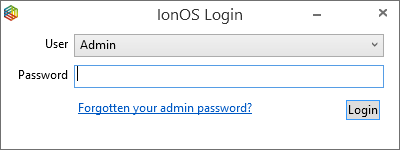
If closing the login form, without logging in, the user will be asked to confirm that they want to close lyticOS.
lyticOS will only be able to close if there are no tasks running and all open batches have been saved successfully.
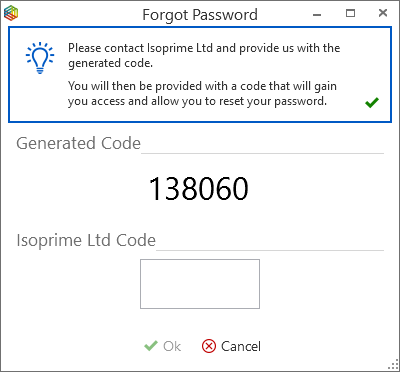
Forgotten Admin Password
If you forget the admin account password, you can select the "Forgotten your admin password?" option from the lyticOS Login form and Isoprime will be happy to help you reset your admin user account password.