Creating Peak Maps for Samples (Manual Identification using Drag & Drop)
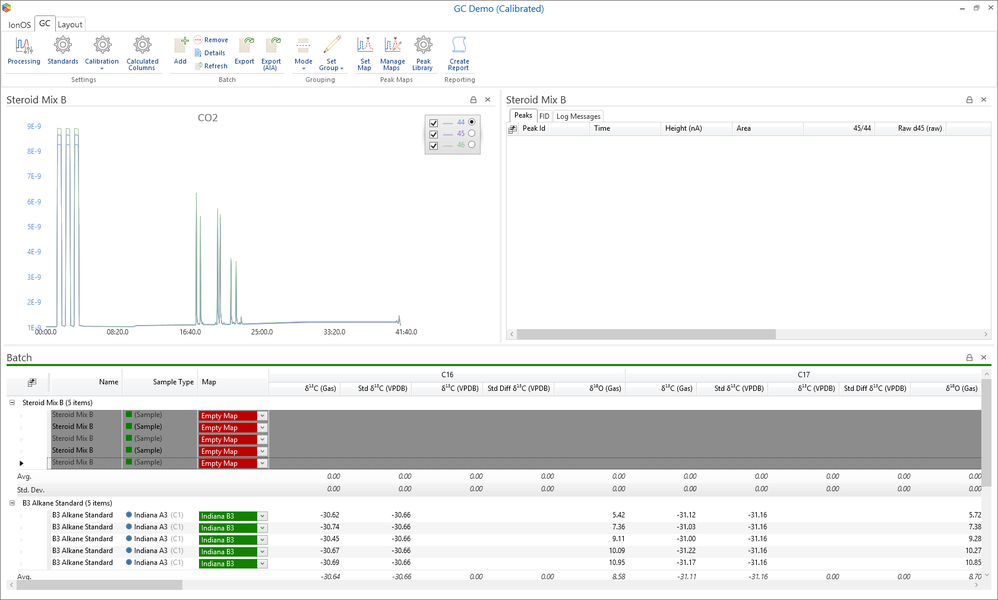
Select all the injections that you want to create a Peak Map for and click the Set Map button to run the Set Map wizard. (Typically, a Peak Map should be applied to samples with a similar structure.)
The Set Map wizard will then be displayed
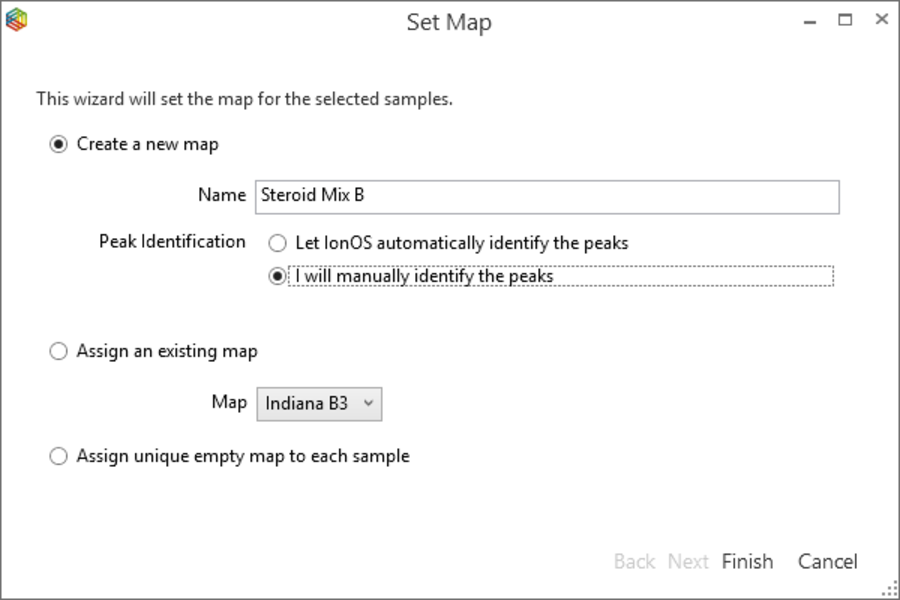
We want to create a new map and use the "I will manually identify the peaks" option.
Give the new map a name and click Finish.
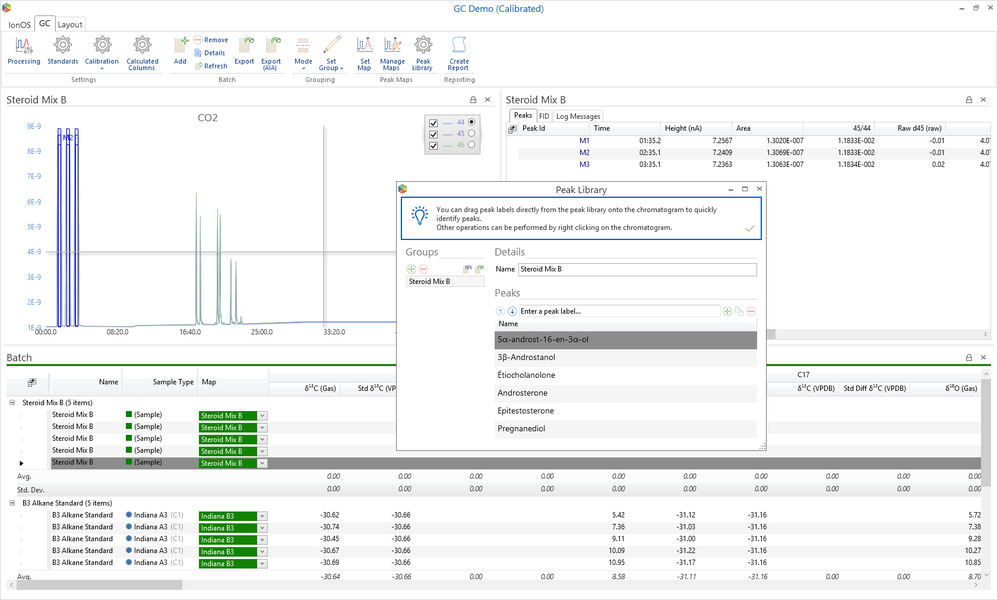
All of the selected injections will then be automatically associated with the newly created Peak Map. The generated Peak Map will automatically be configured to automatically detect all monitoring peaks, so we do not have to worry about mapping them (This can be changed in the Manage Maps advanced settings of the Peak Map).
The Peak Library will then automatically be displayed.
It can be used to quickly manually identify peaks. Simply drag a peak label from the library directly onto the peak within the chromatogram. The peak will then be identified for all the samples that share the same Peak Map. Repeat this operation until all of the compounds are identified.
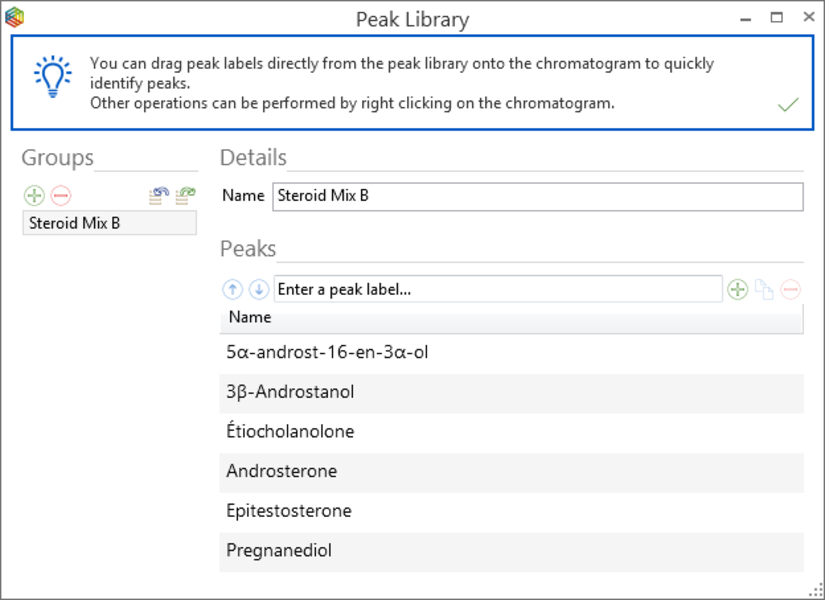
The contents of the Peak Library is global and available within all batches.