Quick Tasks
Introduction
Quick tasks allow users to define task templates, containing 1 or more tasks, which they want to run at a push of a button.
They can be defined to automatically start, add to the current schedule or just added to the task list in design mode.
Quick tasks are both accessed and managed within the Tasks ribbon tab of a connected system.

Figure 9-51: Quick Tasks ribbon groups
Configured quick tasks are visible in Tasks Ribbon -> Quick Tasks.
To manage quick tasks go to Tasks Ribbon -> Manage -> Quick Tasks.
Here you will be able to add, remove and customize the quick tasks available for the specific system that you are connected to.
Each lyticOS system will be pre-configured with a set of Quick Tasks relevant to the system.
Defining Quick Tasks
A quick task has an editable name and group field. These define how the quick task is displayed in the Tasks Ribbon.
The group field defines which menu/drop-down the Quick Task should be placed in. It makes sense to group similar quick tasks into the same menu within the Tasks Ribbon. If you do not want the Quick Task to be placed within a menu, then the group field can be left blank and the Quick Task will be displayed as a standalone button within the Tasks Ribbon.
A Quick Task is effectively its own customizable task list. All the same features of the Task List are available within the Quick Tasks editor. You can copy and paste between the Task List and the Quick Tasks editor to quickly populate Quick Tasks.
Behavior
The "Add Behavior" of each Quick Task can be configured easily.
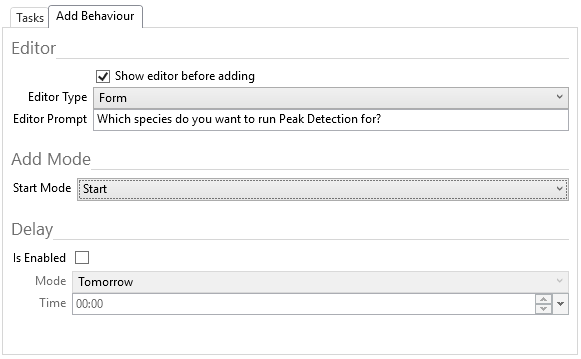
Figure 9-52: Editing Quick Tasks Add Behavior settings
You can configure a quick task to show a dialog with advanced options before adding it to the task list. This is useful to allow the population of task-specific parameters before it is added to the task list. Each quick task can be defined to have its own custom column layout, which in turn defines the layout of the dialog that is displayed.
For simplicity, you can choose to display the quick task editor as a Grid (similar to the task list) or as a Form, with a custom prompt.
The Add Mode can be customized as follows:
Table 9-4: Description of Add Mode options
| Don't Start | Add the Quick Task in Design mode |
| Start | Add the Quick Task in Scheduled mode to the bottom of the schedule and start the task list (if it is not already running) |
| Start (Prioritize) | Add the Quick Task in Scheduled mode to the top of the schedule and start the task list (if it is not already running) |
You can choose to delay a Quick Task from running until a defined date/time. For example, you may want to configure a quick task to run early Monday morning to validate your instrument status.