Methods
lyticOS methods are used by tasks within the Task List.
Method parameters can be customized per task within the Task List, by editing the parameters within appropriate columns.
The Task List has been designed to only show the most commonly edited or useful parameters per task.
If you want to change any parameters that are not visible within the Task List, then you can do so by opening the Manage Methods dialog.
Managing Methods
lyticOS has been designed to hide unnecessary complexity from its users, while still retaining its advanced features.
With lyticOS methods, this is achieved by only showing commonly edited method parameter in the Task List.
If you want to edit any other parameters, then this must be done within the Manage Methods dialog.
For example, if you find yourself wanting to set a parameter value differently for many different tasks, then you can choose to make that particular parameter visible (if it is not already) within the Task List. Or, if you find that you always set a particular parameter to the same value for many tasks, then you can choose to set its default value and not display it in the Task List.
Fundamentally, any parameters that are displayed and/or edited within the Task List are used in preference to the default parameter values defined within the Manage Methods dialog.
Every lyticOS method utilizes a custom and easy to use Visual Programming Language (VPL) in the form of an editable Flow Chart (isoprime precisION License Required). For information on editing Flow Charts, please see Methods.
Method Flow Charts are also known as Method Flows.
The parameters that are editable within the Manage Methods dialog, are therefore simply the input parameters of a defined Method Flow. You can view the Method Flow of any method by selecting a method within the Manage Methods dialog and clicking the Open Designer link.
To open the Manage Methods dialog, ensure that you are connected to a system, and select the Tasks ribbon tab -> Manage -> Methods button.
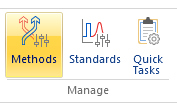
Figure 9-77: Manage Methods ribbon button
The Manage Methods dialog will then be shown.
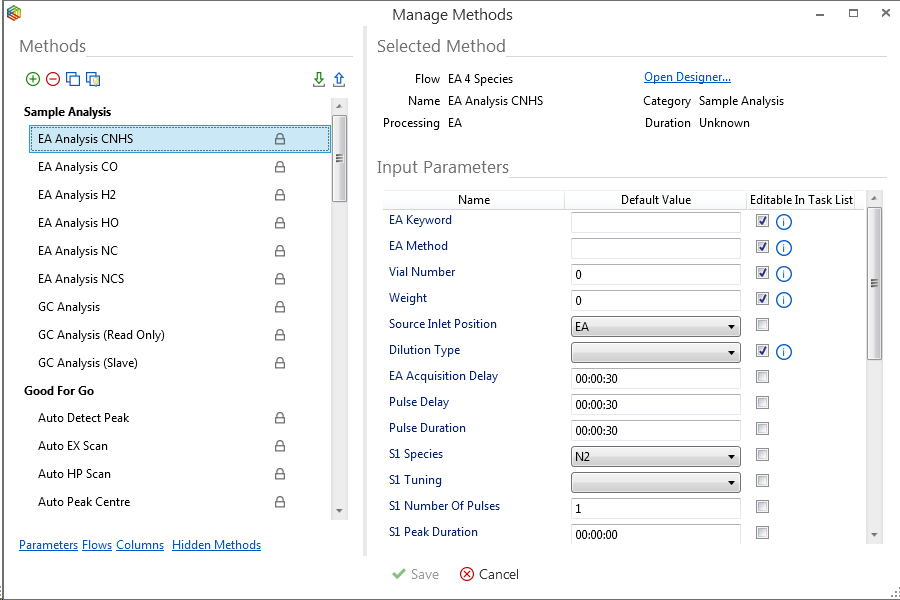
Figure 9-78: Manage Methods dialog
Methods
The Methods List displays all of the available methods that are supported for your specific system.
For convenience, the methods are grouped into the following categories:
The methods that are displayed are specific to your system configuration. E.g. If you have an EA and no GC, then you will not see any GC methods.
A lock symbol next to the name of a method means that the method is locked because it is maintained by Elementar. This allows Elementar to release updates to lyticOS, which may improve the performance of locked methods. It is only the method flows that are locked - you can still edit the method parameters. lyticOS updates, will not overwrite any customized locked method parameter values.
Creating a Method
You can copy a method by clicking the  button. The copied method will automatically be classed as an unlocked method. You can customize the name and category of any unlocked method. A copied method is automatically linked to the same Method Flow as the source Method.
You can create a new method by clicking the  button. You will be presented with a categorized list of Method Flows that are available. Select the Method Flow that you want to use for your new Method and click OK.
Deleting a Method
You can delete a method by clicking the  button. If the method is a locked method, then it cannot be deleted, but instead is automatically hidden. You can unhide any hidden methods by clicking the Hidden Methods link within the Manage Methods dialog and then clicking the Unhide button for each method.
Importing / Exporting Methods
You can import or export methods by clicking the  or
or  buttons respectively.
Editing a Method
To edit a method, ensure that it is selected in the Methods List.
Input Parameters
The Input Parameters are editable for all methods (including locked methods). Each input parameter consists of a Name, Default Value and an Editable In Task List flag. The name is not editable at the method level and comes directly from the Method Flow that the method is linked to. The Default Value is editable and can potentially be overwritten by values within the Task List. The Editable In Task List flag is used to say if a parameter is editable within the Task List.
Details
If a method is locked, then its details cannot be changed.
Method Flow
You can click the Open Designer link within any Method. This will open the Method Flow Editor (Method Flows) for the particular Method Flow that the Method is linked to.
If the Method Flow is locked, then the Method Flow Editor will be read-only, otherwise, you will be able to edit the Method Flow (Methods) (isoprime precisION License Required).